



The playbook: your shop on Arus, step by step
Written for a business that already exists — the shelves are full and the cashier rings daily. This is how the books move onto Arus without stopping either: the owner’s set-up first, then each role’s day. Everyone signs in with their own email, and each role sees exactly what its job needs. If someone cannot see a figure, that is their role working, not a fault.
In a hurry? The picker just below answers for your seat alone — and prints it for the wall by the cashier. The full playbook follows for anyone who wants the whole picture.
Before day one: the owner’s set-up
Choose the account the business will live under
The books belong to whoever signs in, so pick the email address you will still own in ten years — not a side one. Sign in with it, then set up the business: name, kind, currency, and the month your financial year starts.
Draw a clean starting line
Pick a switch-on date — a Monday, or the 1st. Everything before it stays in your old records; Arus starts from here. Don’t re-type history. Keep the old records within reach until your first bank check in Arus comes out clean.
Put the shelf — or the menu — into the app
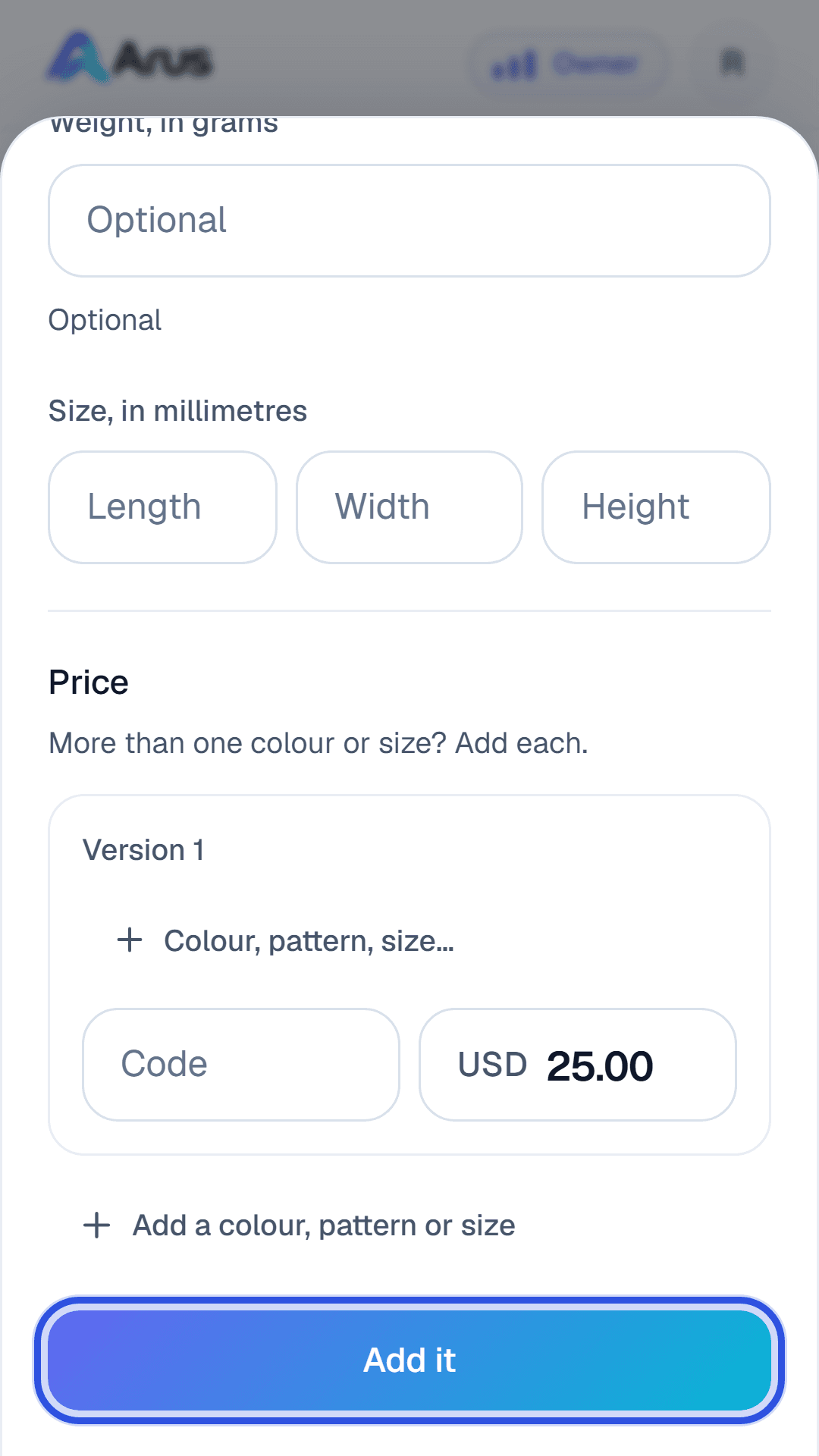
Enter what you sell, with prices. A shop enters items with their colours and sizes; a spa or café enters its menu, and what each dish or treatment uses, so ringing one up takes the materials off the stock list by itself. Give products that need it a checklist, written the way you’d say it to a new hire, and switch on customer checks for the big-ticket items. Then count what is actually on the shelf today and record it, dated the switch-on day, noted “opening count”.
Keeping this list current afterwards — new products, price changes, promotions — is day-to-day work, not owner’s work. You can delegate this ↓
Record the bills that come round again
Rent, utilities, insurance, subscriptions — record each, with the + in the middle of the tab bar, and give it a due-again date. The To do list brings them back two weeks early with last time’s figures filled in. Recording them as they land, month after month, is day-to-day work too. You can delegate this ↓
Hire the team into the app
Send each person an invitation code for their role: front office for the counter, back office for the storeroom, manager for whoever holds the keys. One person, one email, one role — and have everyone check what they can see before their first shift.
Hand duties out deliberately
A role is the set of work somebody does. Anything below marked “you can delegate this” is a manager’s work, handed over here in about thirty seconds:
- Open Team and find the person.
- Tap Change role and pick the role whose work they should do — a manager holds both offices’ work, the price list and the running costs, plus the judgement calls.
- Can edit records sits on the same card, and only an owner can switch it on. With it, a manager can change a figure, a date or a rate on something already in the books — which is exactly what the weekly bank check takes — and every edit keeps the version it replaced.
Wages, the owner’s own money and tax stay with the owners and the accountant, and nobody but an owner changes anybody’s role, so delegation itself cannot leak. What you delegate stays visible: History shows every record with the name of whoever made it, so handing work over never means losing sight of it.
For one-off asks, skip duties entirely: write a To do and tag it for managers, back office, front office or everyone. It shows only to them, and ticking it off records who did it.
The day, role by role
Sales (front office)
Level 1 · the counterRuns the cashier and hands goods over. Sees sales and stock — not costs, not payroll, not the business's totals.
Start of day
- Sign in with your own email — never a shared one — and tap Clock in on Today. Feeling unwell? “I’m off sick today” on the Team screen tells the manager before anyone goes looking.
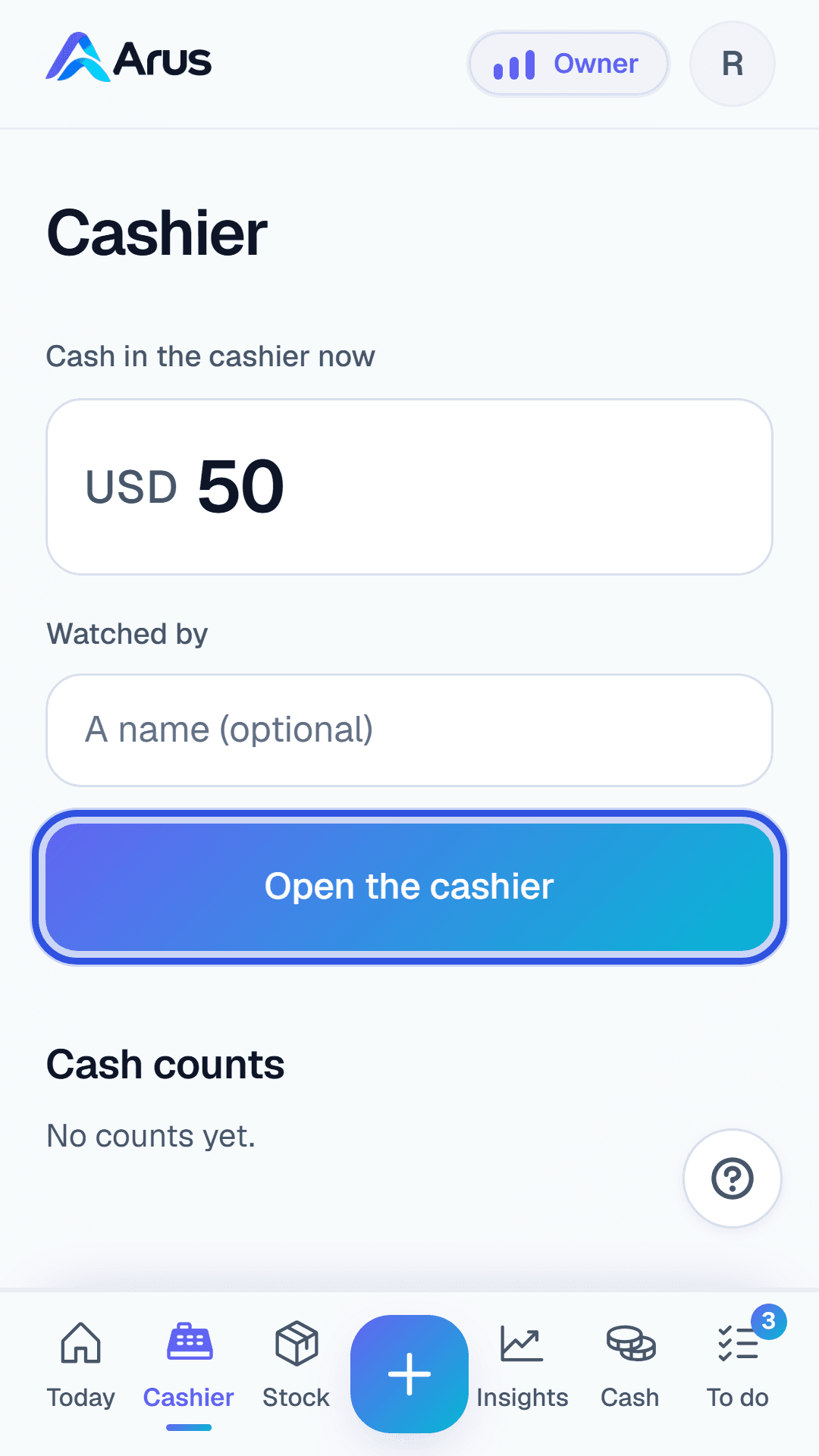
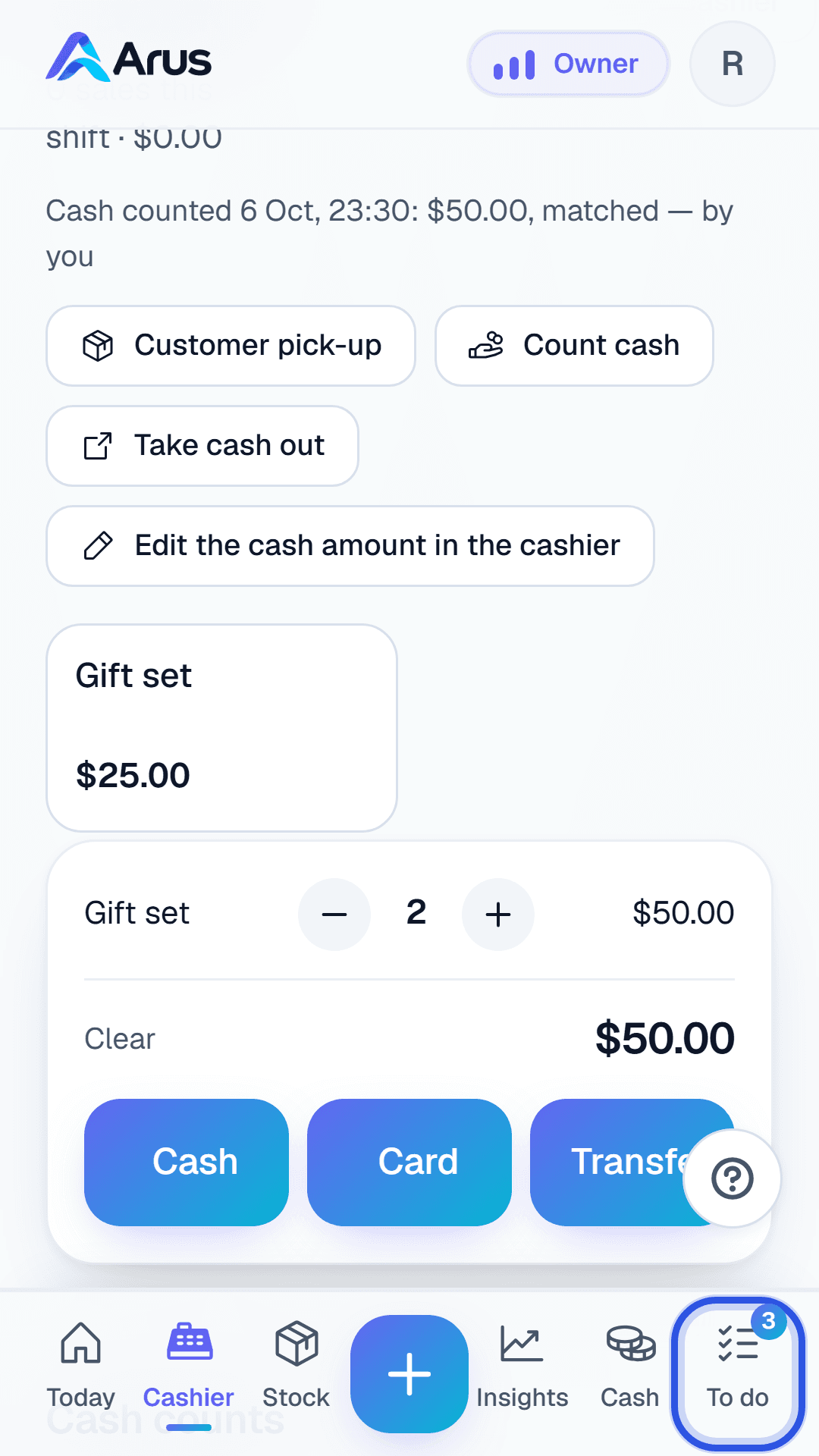
- Open the cashier: it offers what was counted at the last close, which is still in the cashier. Opened wrong? Edit the cash amount in the cashier before the first sale.
- Count the float with a colleague watching and pick them under Who watched — from the team, never typed. They confirm it on their own phone.
- Check the To do list for anything tagged for front office.
Every sale
- Tap what the customer is buying. The cashier prices everything from the shop's own list — nobody types a price.
- Cash: enter what was handed over, give the change shown. Card: pick which bank the machine pays into. Transfer: pick the account they sent it to, and photograph their transfer screen or upload the screenshot they sent.
- Want to know who bought it? Tap + Customer’s name or number: a real name, their Instagram or email, or a phone number — either one is enough, and Arus offers the customers it already knows.
- If the product asks for a customer check, or the shop has not checked it yet, invite the customer to look it over before leaving. Either way they sign on the screen — that they checked it, or that they'd rather not. QC steps shows them what to look for.
- Handing over something set aside for a customer: the prepared checks must be ticked first, then the same customer check at the counter.
End of day
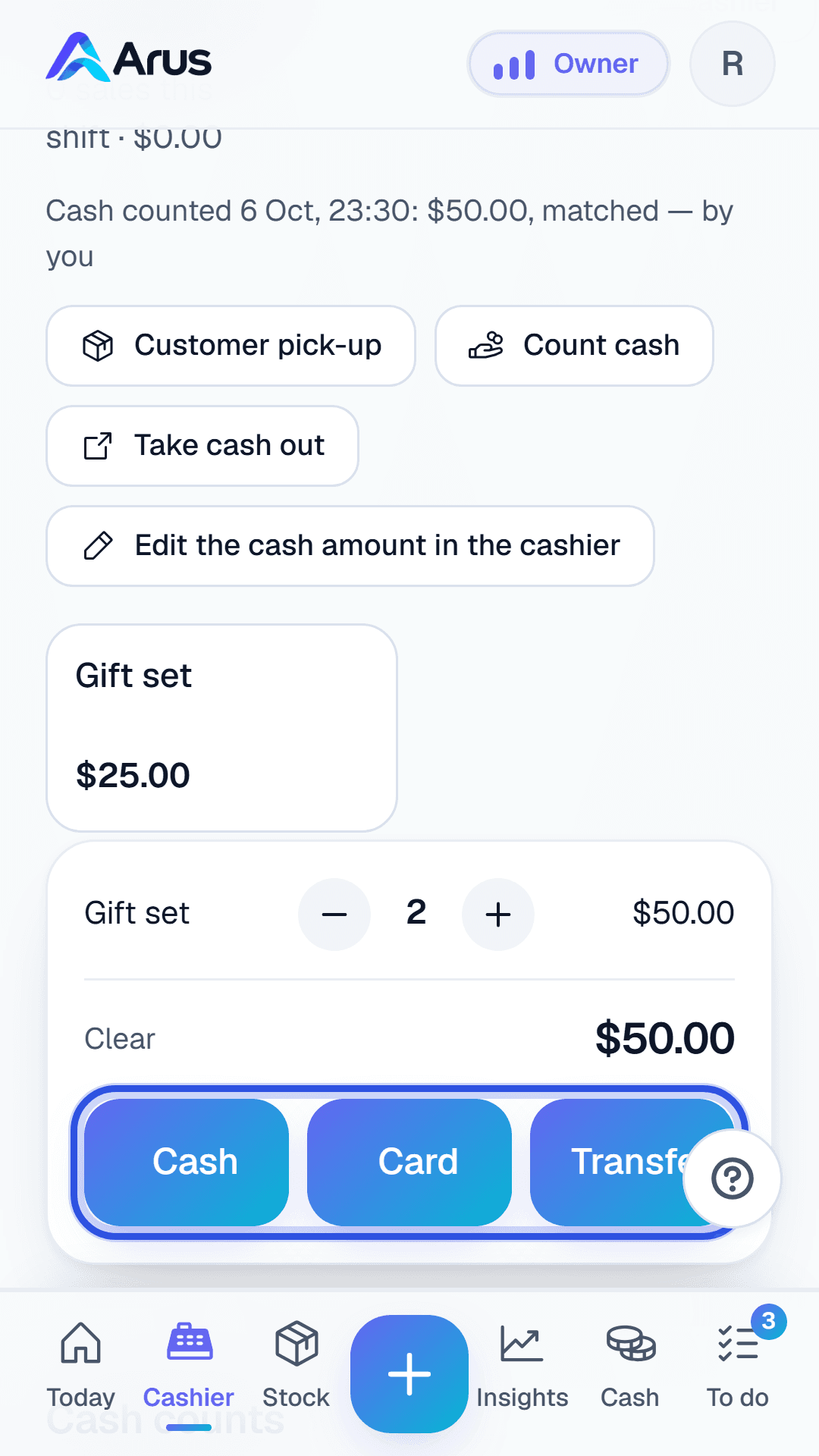
- Count cash with somebody watching, close the cashier, enter the count. The takings post themselves; a difference is recorded as it truly is — never adjusted to match.
- Named as somebody else's witness? Answer in To do — yes only if you saw it counted.
- Mis-rang something? Undo it yourself the same day. After that it's the manager's to fix — say so, don't leave it.
- Clock out before you go.
Back office
Level 1 · the storeroomReceives stock and prepares goods. Records what arrives — how many, not what it cost. Never sees the day's takings.
When a delivery arrives
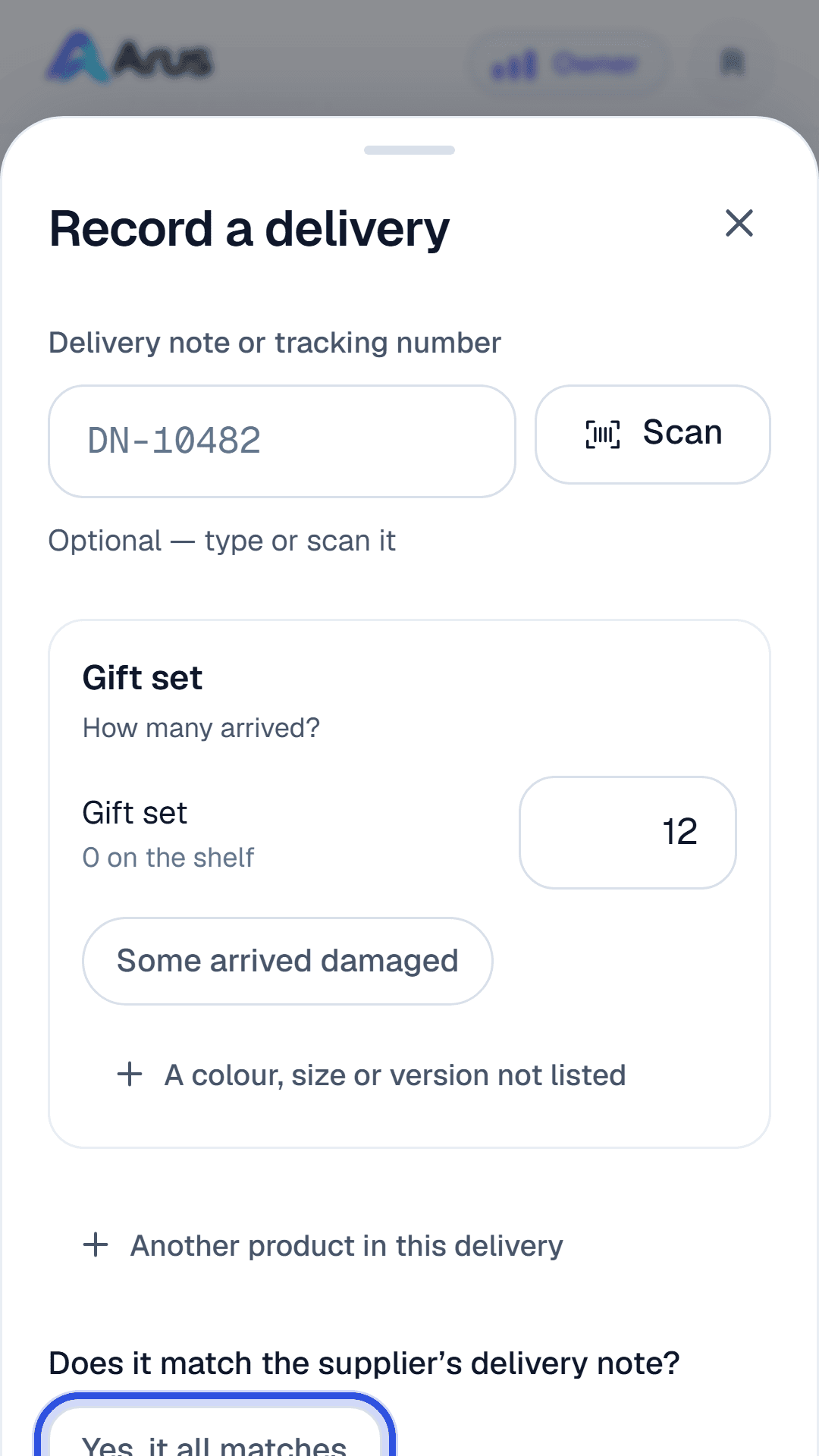
- Check the boxes against the supplier's note — right items, right counts — before signing for the driver.
- Record each item received with quantity, date, and a note naming the supplier.
- Short or damaged? Record what truly arrived and put the problem on the To do list for the owner.
Preparing goods for a customer
- Open the hold; the product's own checklist is on it. Do each check with the item in your hands — the ticks carry your name.
- Anything failing a check: don't tick it. Note what's wrong and set the item aside.
- Record breakages and write-offs the day they happen, with a note saying what happened.
Manager
Level 2 · the floorEverything both offices can do, plus the judgement calls — and whatever extra duties the owner has handed over.
Daily
- Look at Who is in on the Team screen: anybody due and not in a quarter of an hour after their start is at the top, and in To do. Set each person’s usual week once; record leave, days off and sick days as they come.
- See the cashier opened at the start and closed at the end — an open till is takings not yet in the books. A witness who says they did not watch a count lands in To do: ask them both.
- Work the To do list, and undo-and-re-ring anything staff got wrong outside their same-day window.
- Skipping a product's checks is yours alone, and only with a real reason, written down — it is recorded under your name and the owner reads it.
When a supplier's bill comes in
- On the stock list, tap Cost a delivery. Tick the delivery on the bill, say what the goods cost, and add the delivery charge — share it by value, weight, size or by hand. Each item shows its goods and its delivery apart.
- Let it record the bill next: it opens at the total, as stock you keep, and asks only whether it is paid.
- Only the courier's charge so far? Price it anyway and leave the goods cost empty — the delivery waits until the supplier's bill comes.
- Each product's cost follows its latest delivery, with the date it was priced; a delivery 10% dearer or cheaper than the one before is said there and then, and a rise lands in To do. Every dish shows what it costs to make.
If the owner has handed them to you
- The stock list itself: keep products, prices, promotions and checklists current.
- Running costs: record invoices as they land, with due-again dates on the regulars.
- Correct records: fix figures against receipts and run the weekly bank check. Every correction keeps the old version on file.
Owner
Level 3 · the whole pictureAfter the set-up, a rhythm rather than a workload.
Weekly
- Record the costs staff can’t see, as they land, with the + in the middle of the tab bar. You can delegate this ↓
- Read History: everything added, corrected or removed, each with a name on it. Decide anything a co-owner has waiting. This one stays yours.
- Take cash out of a cashier — to the bank, or a place you keep it, like a safe at home. The drawer's count drops by it, and it stays yours alone.
- Check the bank against the books: statement figure in, tick the lines you can find, chase what remains. You can delegate this ↓
Monthly
- Count the stock. The gap between the count and the books is the month's honest shrinkage.
- Read the skip log — every check a manager skipped, and why. A pattern is a training conversation.
- Review who holds what on Team: each person's role, and who may edit records.
Accountant
Beside the ladder · the booksEvery record and all the statements, the bank check and month-end. Sees wages, never sets them; never runs the counter, the stock list or the team. One per business takes no paid place.
Starting out
- Have the owner invite you as Accountant; sign in with your own email and enter the code.
- The Statements tab is your home: profit and loss, balance sheet, cash flow and trial balance, a month at a time, all worked out from the one journal so they cannot disagree.
- Tap any figure to see the records behind it, each with the name of whoever made it.
Monthly
- Run the bank check: statement figure in, tick the lines you can find, chase what remains.
- Put records right where they need it — the statements follow, and the old version stays on History.
- Close the month on the Business screen. The owner or a manager can close one when you are away; only the owner reopens one.
Same day, different nouns
A retail shop
Items with colours and sizes. Per-product checklists for the big things — a stroller’s wheels lock, its brakes hold, no missing parts — ticked in the storeroom, and the customer asked to check before leaving, or to sign that they chose not to.
A spa, salon or café
Treatments or dishes on the cashier’s menu, each knowing what it uses — so much oil, so many towels, that much rice — and taking it off the stock list when rung up. Retail on the side works exactly like the shop’s counter.
House rules, every role
- Your own sign-in, always. Every record carries the name of whoever made it; a shared sign-in makes every record anonymous.
- Record it when it happens — on the phone in your hand, not from memory at closing time.
- Mistakes are undone, never hidden. Arus keeps the history either way; the fastest way through a mistake is to say so.
- The price list decides prices. Nobody types a price at the cashier.
- A tick means you checked. Skipping is the manager's call, with the reason written down.
- Can't see it? Not your job. Questions about money go to the owner, not around the app.
Setting a business up and want a hand shaping your checklists? Write to arus@kapix.io.